Cisco UCS: Intro

UCS


With the overwhelming amount of marketing fluff directed to potential customers, admins, IT Managers and directors; such potential buyers are skeptical to look into new technology and often decide for status quo as far as the vendor selection.

Some potential buyers are starting to utilize social media to research and help them decide on future purchases, given their unbiased point of view. This brings me to Cisco UCS servers. For a long time I was a big fan of HP blade systems and refused to look into other technologies, and tried to steer away from unknown territory. One day I decided to look into UCS further and take one of their hands-on Gold Labs. Turns out Cisco UCS is a very well thought out solution. HP is a nice solution in my opinion but UCS delivers extra features which results in flexible solutions.

From a high level view, UCS delivers compute, server networking, and management from a single solution. Deploying servers, is as simple as assigning policies to the blade servers as far as server configs, networking policies, etc. This makes deployment fast and guarantees a homogenous deployment model.

One of the many advantages that I really like is the ability to scale out. Adding more chassis and servers do not require running additional cables to the core switches as the fabrics are already connected. New chassis are connected directly to the fabrics and that is it. Making it very simple to add compute when necessary. This is just a high level view of UCS, and I plan to write more about it now that I am such a fan of it.  I hope the information I provide may help others with their decisions and also with solutions, and troubleshooting Cisco UCS.


Get your NetApp – VVols while they are HOT

pistonToday, the long awaited NetApp VASA Provider (VP) and the new shiny VSC console have been released to general availability.

So what does VASA and VSC have to do with VVols? Everything. In previous posts I talked about both NetApp’s VSC and VASA provider for VMware here. These offerings along with VAAI provide a tight integration between VMware and NetApp. Given the transition from VMware’s C# Client (fat) to Web Client, it resulted in the need of updated versions, and this is how VSC 6.0 and VASA Provider 6.0 were born.

Now to VVols. In order to be able to deploy VVols with NetApp there are a few requirements.

  • vSphere 6.0 (or later)
  • NetApp Clustered Data ONTAP 8.2.1 or later (thanks Nick for the clarification)
  • VSC 6.0
  • NetApp VASA Provider 6.0

You can see now why this announcement is such a big deal, both VSC and VP make up the engine that powers up the VVols machine. Both vSphere and cDOT 8.2.1 have been out for a while, but those that wanted to test drive VVols with GA code could not do that until today except by using beta code.

VSC brings and additional enhancement with its new version and that is the addition of PowerShell cmdlets for most VSC features. These cmdlets along with PowerCLI and NetApp’s PowerShell Tool Kit can provide tighter integration and automation between NetApp and VMware.


You can download VSC and VP from the links below:

VSC_6.0_Download

NetApp_cDOT_VASA_Provider_6.0

cDOT Tips 101 – Web Logs

Troubleshoot

With the transition to NetApp clustered Data ONTAP from 7-mode, a lot of end users are struggling not  only with new commands to learn, but also with troubleshooting a platform that admins are not familiar  with.

The most common mistake I see from admins, specially the newbies, is the lack of research and effort put  into a problem. Often times the problem is easy to fix, but you have to go find the root cause first.

While admins still stumble through the new commands, the first thing they should be doing during a troubleshooting exercise is to look for the logs. This may be obvious to some of us, but not to all. Fortunately cDOT allows for admins to look through the logs from a web UI as long as everything is configured properly, which removes some of the intimidation from new commands.

To access the logs for a node, you first need to:

  • setup a cluster management LIF
  • configure web protocol engine (HTTP or HTTPS (need certs))
  • allow chosen protocol through the firewall, if enabled
  • setup Service Processor Infrastructure (spi)
    • you can use vserver services web show to verify if it is enabled
  • cluster user account must be enabled for http access
  • access to the spi web service must be in place for your role (access-control)

Once everything is configured properly, you can navigate to:

Note: If you selected to use HTTPS and configured/imported certificates, the path will start with https instead of http as shown above.

If asked for credentials, use the credentials for the cluster user account.

web_log

VCSA 6.0 OVA install

In my last post I talked about some of the gaps with VCSA compared to the Windows vCenter version. I mentioned that the OVA was no longer available for download; however, it was quickly pointed out to me by William Lam from VMware that the OVA is in fact still available within the download; however, there is a disclaimer stating that such method is not officially supported by VMware.

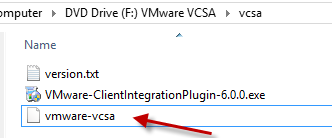
Anyway, the OVA is buried within the ISO. Once you have mounted the ISO, you can navigate to the vcsa folder and the file named vmware-vcsa (with no extension) is the actual OVA (ISO->vcsa->vmware-vcsa). You may need to rename the ova to vmware-vcsa.ova or <other>.ova.

vcsa_ovaFile OVA_VCSA


From that point on, the deployment is the same as before.

William works for VMware and is a super sharp guy; although he may not remember me, I had the pleasure of meeting him during the vSphere 6 onsite Alpha over a year ago. Make sure to check out his blog full of tips and tricks. His blog site is virtuallyGhetto .

Deploying VCSA 6.0: Mind the Gap

VMware’s VCSA 6.0 brings a lot of enhancements compared to previous versions. I would seriously consider deploying VCSA in a production environment in order to replace the Windows flavor. For those not familiar with VCSA, this is the virtual appliance option to deploy vCenter in an environment. It reduces the time needed to deploy vCenter and offers an integrated database for no additional cost. Although this post may not be entirely technical, it will allow you to be aware of possible constraints that will prevent you from deploying VCSA before you invest too much time on it.

One of the great things about deploying VCSA over the Windows vCenter is that you will reduce the cost by not deploying a Windows VM as well as having to purchase an MSSQL license. VCSA sounds great so far, but there are some gaps that you need to be aware of before deploying this in an environment.


VCSA_mind_the_gap

Some of the shortcomings of VCSA are primarily related to its nature of not being a Windows VM. For some deployments Windows vCenters have been used to also host the VUM (Update Manager) components, as well as programs that provide additional capabilities to the virtual environment such as VSC for NetApp storage, among others. This means that you would still need to deploy a Windows VM to host VUM as well as VSC in this case. Even though you would still be deploying such VM, the need for a MSSQL server/instance is not required which translates in savings.

Another aspect to keep in mind is the installation and migration from previous versions. There is no in-place upgrade from previous versions, but migrations are possible. With this in mind, you may want to consider to just start with a new, fresh environment. I would. Same applies to the Windows flavor. The installation method now comes as an ISO image. This may cause some confusion. In order to deploy VCSA, the ISO is mounted from a Windows system (can be your computer) and installation can be done remotely.

Before installation, make sure you install the Client Integration Plugin located within the ISO under the vcsa folder.

VCSA_CIP


Start the installation by launching the vcsa-setup.html file from the ISO. A Web UI opens up after a few seconds, and gives you the option to install and ‘Upgrade” (migrate). During installation, just provide the target Host information, and the rest of the information needed for the installation. Make sure the VCSA appliance has a proper network connection and you can reach it from the computer deploying the appliance.

vcsa_setupvcsa_UI


Both Windows and appliance vCenter offerings have the same scalability numbers as it relates to hosts, VMs, clusters, etc.

In conclusion, VCSA is a great choice for vCenter, but just be aware of some of the constraints of not using the Windows option. By the way the Web UI in vSphere 6 is soooo much faster!!! I’m just saying.