SHIFT VMs between Hypervisors

computer_key_ShiftAs more and more hypervisors emerge in the market, and more features are added to current hypervisor offerings; businesses may opt to migrate between vendors to save money, add features, consolidate to a single platform, or simply to follow a strategic plan. The migration is costly, complex, time consuming and disruptive as it requires down time of the VMs to be migrated; which is often not an option.

If you use NetApp as your storage vendor, the solution for this problem is now available to you. NetApp has announced the release of OnCommand Shift; a tool that enables the migration between Hyper-V VMs into a VMware environment and vice versa. This conversion is automated and requires minimum intervention from the user, and it takes a fraction of the time that other tools would take otherwise. OnCommand Shift supports VMware ESX/ESXi 5.0 -> 6.0, and Microsoft Hyper-V 2008 R2 -> 2012 R2.

How does OnCommand Shift works?

OnCommand Shift utilizes NetApp’s FlexClone technology which allows for the creation of the target VM within seconds/minutes. This is accomplished by creating a VMDK; for example, from a VHDX file by simply creating pointers to the existing data rather than copying and duplicating such data in the storage array. So, regardless of the size of the VMs, the time necessary to create the new VMs will be minutes or even seconds, rather than hours or days.

Shift_FlexClone

OnCommand Shift creates a virtual hard disk file in the format of the destination hypervisor and includes headers, metadata, and writes only the differences in the file format, instead of copying all the data from the source. Shift also collects and stores all VM information, as well as other VM settings, removes any hypervisor proprietary tools, and takes a backup of the VM prior to the conversion. It then proceeds to convert the VMs, say from Hyper-V to VMware, and then it restores all the network interface configuration as well as other settings.

Shift_Overview

Requirements

  • NetApp FAS2440 or higher
  • NetApp cDOT 8.2 or later
  • NetApp NFS and CIFS/SMB license for the controllers
  • Server to control the migration process (Physical or Virtual)
    • 2 vCPUs
    • 4GB RAM
    • 250GB storage Minimum (500GB preferred)
  • Data ONTAP PowerShell Toolkit version 3.0.1 or higher
  • PowerCLI 5.1 or higher
  • Microsoft Hyper-V PowerShell cmdlets
  • Microsoft .NET Framework 3.5


Golden Nuggets: #2 NetApp VSC – Provisioning

Wizard_LegoI previously wrote a post or two related to NetApp’s Virtual Storage Console for VMware vCenter, including its uses and how to install it. In this post I would like to highlight its importance in a NetApp/VMware or FlexPod environment.

NetApp’s VSC is a very handy tool that will allow you to achieve many tasks in an automated fashion rather than doing them manually; therefore, it will save you time and eliminate the possibility of human error. During the configuration and provisioning process, the human error factor can result in a lot of frustration for the admin/engineer, as troubleshooting often ends with the finding of a simple step that was missed. VSC is not a new tool, but there is a new version (6.0) that introduces new features and fixes. VVols requires VSC 6.0 , by the way.

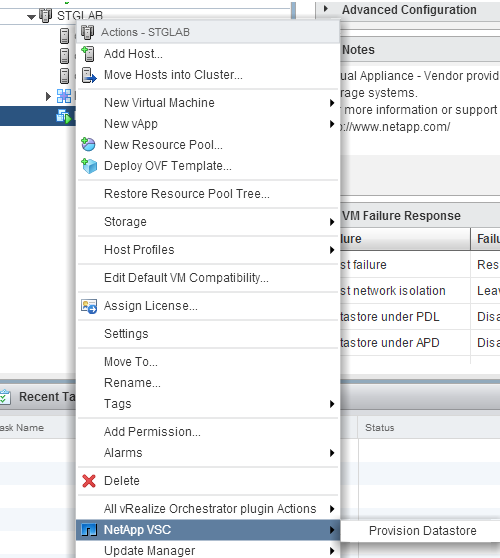
One of the coolest features of VSC (IMHO), is the provisioning of storage from the VMware Web client. If we were to create an NFS datastore for VMware, the manual process will include the creation of a volume, granting the correct permissions for the export, and then mounting the datastore to each host. This takes quite a bit of time and requires having to jump between UIs.

VSC allows you to do all the aforementioned steps from the VMware client (Web or C#) from one easy to use provisioning wizard. You can provision datastores, volumes, exports, and permissions by simply right-clicking the cluster or an individual host. If  you do this from the cluster level, VSC will create the volume and exports which is cool, but the coolest part is that it will also add the hosts’ IP addresses with the necessary permissions to the export, and it creates and mounts the datastores on all hosts within the cluster, NFS in this case. That alone is a good reason to have VSC, albeit there are many other tasks that VSC is capable of.

One of the frequently asked questions I see on both the VMware and NetApp communities, relates to errors and failure to mount an NFS datastore in vCenter. Often times it relates to the permissions within the exports, so VSC will do all this for you and prevent such issues.

Note: Please refer to NetApp’s Interoperability Matrix Tool (IMT) to determine which version you need. Specific versions are needed for VMware’s Web client and the same goes for the vSphere Client.

VSC_Cluster


VSC options for Cluster


VSC_Host


VSC options for Host


Golden Nuggets: #1 vSphere vFlash

ToolsWith so many tools and features from many different vendors, it is almost impossible to research them all and find useful tools to make your job easier. Some features also provide a faster/cheaper way to solve common problems without spending a fortune, unfortunately, these “Golden Nuggets” are often underutilized. I’ll post a few quick tools that may make a big difference in someone’s environment. As always, test before deploying to production.

One of the cool features introduced in vSphere 5.5 was vFlash, which replaced swap to SSD from previous versions, but I won’t get into that. Essentially, this is flash-based read cache on the host that functions at the vmdk level for a specific VM. This feature works by adding flash-based resources such as PCIe cards or SSD drives to create a vFlash pool of resources at the host level, and configuring the amount of storage to be used for host swap cache. Such cache is placed on the data path of the vmdk between the host and the storage array.

Once the host is configured, you can expand the virtual disk of a VM’s properties in the Web Client and assign the amount of cache for that particular vmdk, as well as having the option to select the block size (4KB – 1024KB). So, for each pool, chunks are carved out or reserved for a specific vmdk on the host where the VM is located.

vFlash_vmdk

As far as data locality goes and features like HA, DRS, vMotion; it is possible to migrate the cached data to another host while migrating a VM, as long as the other hosts have also been configured with vFlash. You may also specify not to migrate the cached data during migration.

Requirements:

  • Check HCL for compatible Flash devices
  • vCenter 5.5 or later (VCSA or Windows)
  • VM hardware version 10 or later
  • vSphere vMotion if using DRS
    • Requires vFlash on hosts within the cluster


Implementing vFlash can be beneficial for resolving or minimizing performance degradation for read intensive applications, or simply by utilizing local resources at the host level for read cache instead or in addition to storage read caching solutions. Having local cache eliminates the “extra hop” on the network to get to cached data at the storage array.

This is a high level view of vFlash but in my opinion, I think this is a nice feature that can get rid of some headaches and fire drills.


vFlash_highLevelImage source – VMware doc (Rawlinson)


Cisco UCS: Intro

UCS


With the overwhelming amount of marketing fluff directed to potential customers, admins, IT Managers and directors; such potential buyers are skeptical to look into new technology and often decide for status quo as far as the vendor selection.

Some potential buyers are starting to utilize social media to research and help them decide on future purchases, given their unbiased point of view. This brings me to Cisco UCS servers. For a long time I was a big fan of HP blade systems and refused to look into other technologies, and tried to steer away from unknown territory. One day I decided to look into UCS further and take one of their hands-on Gold Labs. Turns out Cisco UCS is a very well thought out solution. HP is a nice solution in my opinion but UCS delivers extra features which results in flexible solutions.

From a high level view, UCS delivers compute, server networking, and management from a single solution. Deploying servers, is as simple as assigning policies to the blade servers as far as server configs, networking policies, etc. This makes deployment fast and guarantees a homogenous deployment model.

One of the many advantages that I really like is the ability to scale out. Adding more chassis and servers do not require running additional cables to the core switches as the fabrics are already connected. New chassis are connected directly to the fabrics and that is it. Making it very simple to add compute when necessary. This is just a high level view of UCS, and I plan to write more about it now that I am such a fan of it.  I hope the information I provide may help others with their decisions and also with solutions, and troubleshooting Cisco UCS.

Get your NetApp – VVols while they are HOT

pistonToday, the long awaited NetApp VASA Provider (VP) and the new shiny VSC console have been released to general availability.

So what does VASA and VSC have to do with VVols? Everything. In previous posts I talked about both NetApp’s VSC and VASA provider for VMware here. These offerings along with VAAI provide a tight integration between VMware and NetApp. Given the transition from VMware’s C# Client (fat) to Web Client, it resulted in the need of updated versions, and this is how VSC 6.0 and VASA Provider 6.0 were born.

Now to VVols. In order to be able to deploy VVols with NetApp there are a few requirements.

  • vSphere 6.0 (or later)
  • NetApp Clustered Data ONTAP 8.2.1 or later (thanks Nick for the clarification)
  • VSC 6.0
  • NetApp VASA Provider 6.0

You can see now why this announcement is such a big deal, both VSC and VP make up the engine that powers up the VVols machine. Both vSphere and cDOT 8.2.1 have been out for a while, but those that wanted to test drive VVols with GA code could not do that until today except by using beta code.

VSC brings and additional enhancement with its new version and that is the addition of PowerShell cmdlets for most VSC features. These cmdlets along with PowerCLI and NetApp’s PowerShell Tool Kit can provide tighter integration and automation between NetApp and VMware.


You can download VSC and VP from the links below:

VSC_6.0_Download

NetApp_cDOT_VASA_Provider_6.0