vCOPS vApp Migration to new vCenter

I really like vCOPS, as it makes my life easier. I can easily run a stress reports and show undersize/oversize percentages within a VM, among other cool reports.

Anyway, I’m migration most of my vCenters from 5.1 to 5.5, and I opted to create new vCenters since the “old” 5.1 vCenter have been in-place upgraded since 4.5. I know, I’m not a fan of in-place upgrades either. Migrating VMs from VC to VC is easy enough. Just attach the storage to both vCenters and remove from inventory from the source vCenter, then register the VMs by right clicking the .vmx file and register VM, or add to inventory depending on what flavor of UI you are using.

To migrate the vCOPS vApp, we need to remember a few key points that are important. An IP Pool is required for vCOPS. The vCOPS vApp holds critical information such as the IP addresses of the UI and analytics VM as well as the timezone and start order among other settings. Moving the vCOPS VMs is pretty straight forward, but how about the vApp?

Moving vCOPS to a new vCenter is actually really easy. You could export the entire vApp to an OVF or OVA and then import it to the vCenter. While this is the method I’ll be describing it takes quite some time to export your vCOPS VMs and it is an unnecessary space requirement in my opinion. To quickly move vCOPS do the following:

  • Write down the timezone and IP addresses under the vApp properties
  • Shutdown your vApp
  • Remove vCOPS VMs from inventory and register them in the new vCenter
  • Next you need to export your vApp to an OVF template
    • If you try to do this now, it will fail because there is no known network as described within the vApp, since the vApp has no VMs with network interfaces.
    • Just create a dummy VM as a placeholder within the same network as the other vCOPS VMs, and use thin provisioning so you don;t waste any storage.
    • This will allow you to export the vApp
  • Once you have exported the vApp. Import it into the new vCenter
  • Add the “migrated” vCOPS VMs into this vApp
  • Remove the dummy VM
  • And you are done… Well, not quite yet.
  • Remember the vCOPS requires the IP Pool aka (Network Protocol Profile)
  • So create a new IP Pool in the new vCenter and you should now be able to bring up your migrated vCOPS environment

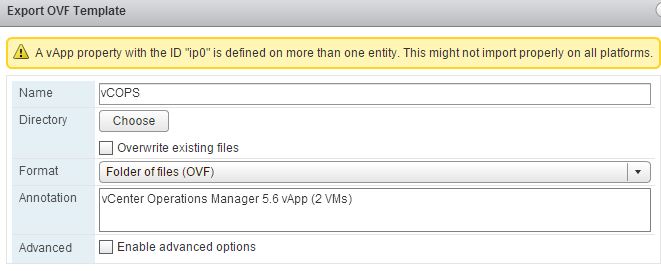
vCOPS_vApp_prop                       vCOPS_vApp_OVF


vCenter Alarm Definition Migration

Alarms play a very important role in vCenter in order to keep the VMware admins aware of what’s going on with their environments. Even if you have vCOPS configured, I personally still like to have alarm definitions set up, specially in the event that the vCOPS vApp is shutdown, etc.

One of the use cases for alarm definition migration is the creation of a new vCenter, or even just wanting to have all vCenters configured with the same alarms. You can do all this manually, but If you have defined alarm definitions in the past, you already know this a very time consuming task and new versions of vCenter include more and more alarms as new releases are introduced. You can also have your own alarms, in which case, it make sense to have a method to copy such definition when needed.

VMware has a KB article with a script dating from 4.x version. I used this script, which works well, but it leaves out a couple of minor details that may be overlooked, specially with people with little to no experience with Power Shell and PowerCLI. In KB1032660 VMware has a script that can do this for you, all you have to do is edit the script and run it. However, the picture shows PowerShell ISE “run” button for the screen shot. In an “out of box” environment, this will fail. Why? Because this script requires PowerCLI cmdlets (connect-viserver, etc.) and those are not part of PowerShell ISE unless you import the snap-ins manually, which is totally feasible.

Error

To make the script work, you’ll have to either add the PSSnapins or run the script from PowerCLI. The easiest way is to just run the script from PowerCLI. Although this is self explanatory, I will show how to go about doing that.

Overview:

  • Download latest version of PowerCLI from VMware downloads that match your environment
  • Download the script from VMware’s site KB1032660
  • Open the script using PowerShell ISE, notepad, notepad++, or your editor of choice
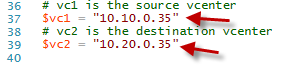
  • Edit the variables for $vc1 and $vc2 and line 92 to (true), then save the script

variables

ifTrue

  • Open PowerCLI
  • Navigate to the location where you saved your script and run the script from there

navigate

  • You will get a few prompts, just hit Y [default]

At this point you should see all the vCenter alarms copied to your target vCenter server. As you add alerts to your source vCenter, you can use this script to keep all your vCenters in sync until VMware comes up with this tool.

Feature request!?!?