What’s new on vSAN 6.6

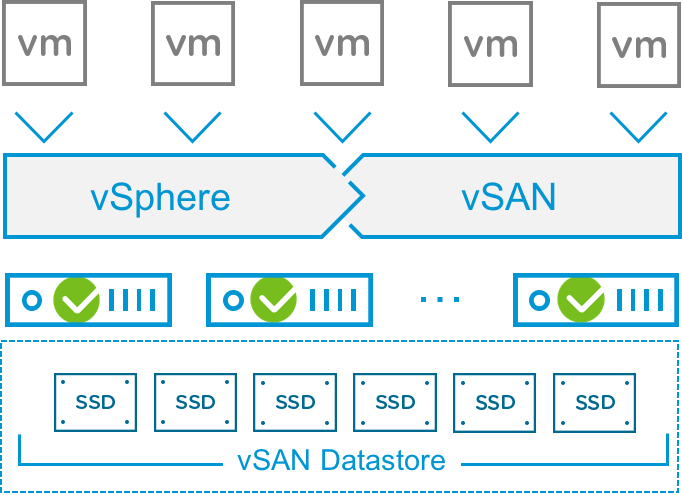
Today, one of the largest vSAN releases was announced. This release comes packed with new features, enhancements, and a lot of improvements; making vSAN 6.6 easier to deploy with enhanced performance, and a more complete HCI platform.

What’s New with vSAN 6.6?

Native Encryption 

Encryption is one of the main features for this release. This is a software solution rather than just using self encrypted devices (SEDs), which are not needed by the way. Any HCI can add SEDs and call their solution encryption ready, but vSAN goes a step further and provides software encryption for data at rest.


vSAN Configuration Assist 
The vSAN configuration assist allows customer to check hardware compatibility, conduct burn-in tests, check network and vSAN configurations, as well as getting recommendation for optimal cluster configuration based on current status. For example, the configuration assist will check to make sure all vSAN vmknics are configured properly, as well as recommending upgrading on-dik format to the latest versions. Such recommendations will allow for a configuration that follows vSAN best practices.


Hardware Lifecycle Management

This feature allows customers to be able to update outdated controller firmware and driver version for example. In such case the outdated hardware will be identified and you will have the option to download and install the latest version directly from the vSphere Web Client. This feature removes the need for vendor-specific tools as it provides an orchestrated hardware lifecycle management across the vSAN cluster.


Host Client vSAN visibility

Although vSAN is not heavily dependent on vCenter, in the event that vCenter is not available we lose some visibility from the UI perspective. On vSAN 6.6, the HTML5 Host Client now has visibility and capability of doing health checks not only for the host itself but also for the entire cluster.  Alternatively you can use “esxcli vsan” commands for additional tasks. Such commands have been expanded to keep up with the new features.


Web Client Health and Performance Monitoring 

The vSAN health function has now significantly more checks to aid in proper configuration and troubleshooting. Monitoring and alerts have also been added for the new features such as physical disk health, networking, etc. On the performance diagnostics side,  you are now able to query throughput, latency, and IOPs among others.


Host Evacuation Pre-checks 

Built into maintenance mode operation and disk/disk group removal, the pre-check allows for lower operational overhead, and reduces risk by helping ensure proper capacity remains after a host evacuation. The pre-check will show if there is sufficient capacity for data movement and how much data will be moved. I really like this feature as it gives visibility to the “What-if” for each option of maintenance mode.


Easy Deployment 

The new VCSA is now capable to deploy a vSAN cluster on a single node and place the VCSA appliance on the vSAN datastore. This eliminates the need for external storage, forgoing to claim disks, or bootstrap scripts. This makes greenfield deployments quick and easy for vSAN clusters.


Multicast Dependency REMOVED 

Yes! Another big step here. The need for multicast is no longer required. In fact, once you upgrade your vCenter and hosts to version 6.6 the networking mode is automatically changed to unicast.

Proactive Drive HA 

vSAN 6.6 intelligently predicts device failure and proactively move data out of the failing device before it actually fails and cause a Permanent Device Loss action.


Other Great Additions:

  • vRealize Management Pack for vSAN
  • Easier replacement of witness host on stretched-clusters
  • vSAN API and PowerCLI enhancements
  • Local Failure Protections for Stretched Clusters through Primary and Secondary FTTs
  • Stretched Cluster Site Affinity
  • Deduplication and Compression Performance Enhancements
  • Checksum optimization
  • Rebuild & Resync Enhancements (Partial Rebuilds)
  • Proactive and more aggressive de-staging


I’ll be writing a few more blogs about the new features. Stay tuned.


vSAN Sparse Swap

Although this is not a new feature, it still seems to be a little known feature by many that can save you quite a bit of disk space. Prior to vSAN 6.2, all VMs were created reserving 100% of the configured memory, when there were no memory reservations defined. Because vSAN makes copies of the objects, we would need 2x the size of the memory per VM to be reserved for swap space. Remember that default policy is FTT=1 (2 copies), and swap being a “special” object, it will get the default policy (not subject to SPBM) and not Raid5 or Raid6 otherwise. On average, VMs have ~4GB-8GB of memory, depending on the workload of course. When we multiply this by the number of VMs, we can end up using quite a bit of reserved storage for swap objects. If we assume ~1,000 VMs per cluster, we would use ~8TB of space, in theory.


When is swap needed?

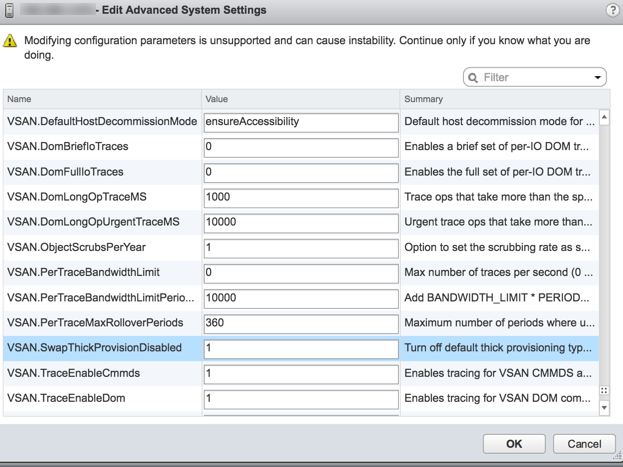
When  you overcommit memory, swap will be needed; and when you don’t overcommit, you may benefit by disabling SwapThickProvision in order to save some space.

This is an advanced config setting per host in the cluster. You can set this up through UI(6.5+), CLI, PowerCLI, and even Host Profiles.


CLI

get:  esxcfg-advcfg -g /VSAN/SwapThickProvisionDisabled

if 0 = Enabled. Swap is thick provisioned

if 1 = Disabled. Space savings

set:   esxcfg-advcfg -s 1 /VSAN/SwapThickProvisionDisabled


UPDATE ***another command using esxcli***

list: esxcli system settings advanced list -o /VSAN/SwapThickProvisionDisabled

set: esxcli system settings advanced set -o /VSAN/SwapThickProvisionDisabled -i 1

PowerCLI

A colleague of mine, Jase McCarty, created a PowerCLI script to set this at the Cluster level… Talk about the “easy button”/

https://github.com/jasemccarty/Vsan-Settings/blob/master/Vsan-SetSwapFiles.ps1


Host Profiles

The host profiles works the same way whether VSAN is enabled or not, you still create the profile from a host, apply it, check compliance, remediate. You will of course see more settings if vSAN is enabled.

I mentioned that this is an advanced configuration setting, so this setting is not visible on the host profile, unless this was set to 1 prior to exporting the host profile from one of your hosts. That means, you will have to manually set this on one host, and then export the profile for it to be visible on the WebClient.


UI

vSAN 6.5 –  Host>Configure>Advanced System Settings>Edit>VSAN.SwapThickProvisionDisabled> Set to 1


Friendly Advice: Again, if you are overcommitting memory on your hosts, DO NOT disable SwapThickProvision.

vSAN Stats Object Out of Date

Several people asked me this question several times, so I figured I’ld write a quick post about it.

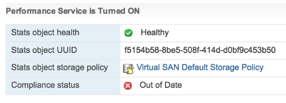
When the default vSAN policy was being changed, people started noticing that the Stats Objects (Health) will show as “Out of Date”, even though the policy was applied at the end of the wizard.

A few things to keep in mind:

  • The Stats Object is exactly that, an Object, just like a VM home folder, or VMDK.
    • That object is associated with a Policy, usually the default vSAN policy
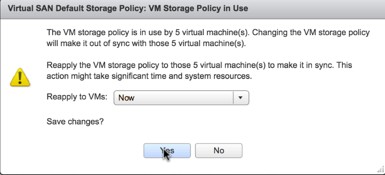
  • If you change a policy, you can apply this immediately through the wizard
    •  However, this applies the policy to the VMs (objects)
    • Stats Object is not part of any VM
  • If you change the policy that the Stats Object is using or sharing with VMs, then you will need to manually re-apply that policy to the Stats Object.

Scenario

  1. Policy change (Default in this case)
  2. Reapply Policy to VMs now
  3. Stats Object show “Out of Date”
  4. Edit the Storage Policy under Health and Performance and click OK
  5. This will bring the Object back to compliance

pol_apply_now


out-of-date

stats-compliant


Quick Video about it

Tip: “Cannot complete file creation operation. Failed to place witnesses”

I have a few home-labs that I play with on a regular basis. Before vSphere 6.5 went GA, I installed the beta code and created a vSAN stretched cluster using 2 Intel NUCs.

Long story short, hosts were upgraded, new clusters created/migrated to new vCenter, etc. I started running into weird issues, like multicast network partitioning, and not being able to move VMs to the new cluster. I decided to create a new All-Flash cluster and add another node. I was only able to move VMs on that new node.

After digging a little deeper, found out that the 2 pre-existing hosts were not cleaned up properly when I moved things around. They were still showing on stretched cluster mode on.

The Error:

Cannot complete file creation operation.
Failed to place witnesses. There are currently 0 usable disks and 1 more usable disks are needed in witness node.
Failed to create object.

no_file_creation


The Fix:

Turn stretchedClusterMode off by running the following commands on each host.

GET state: vsish -e get /vmkModules/vsanutil/stretchedClusterMode 

If 1 then it is enabled. If 0 it is disabled.

If enabled (1), turn off by setting to 0

SET state: vsish -e set /vmkModules/vsanutil/stretchedClusterMode 0


stretchedclustermode_off