
I recently came across a new installation of NetApp Filers and discovered that they were shipped in 7-Mode instead of the requested Clustered Mode. The problem was that most of the documentation I found was pointing to old versions of ONTAP. Since new Filers are shipped with the newest versions of ONTAP (Thanks NetApp!), I figured it would be nice to document the procedure for the switch from 7-Mode to Clustered Mode.
The first step is to setup the pre-boot environment variables. In order to be able to do this, you will need to boot into loader prompt.
- Boot NetApp
- Press Ctrl-C when prompted to halt boot process
- This will take you to the loader prompt. If not, you missed your chance and will have to reboot again
- In Loader Prompt type:
- set-defaults
- setenv bootarg.init.boot_clustered true
- boot_ontap
- These commands will set clustered-mode as the default mode
Now that we have setup clustered-mode as the default, the Filer will boot up in clustered mode, but we are not done yet. You will then need to boot up into the boot menu and initialize your drives. BE CAREFUL, as this will erase all your data. So this walk-through applies if you are working on a new filer or re-purposing a filer from 7-mode to clustered mode. If you have any data that needs to be saved, or this is a production environment, do not follow these steps. Call Support.
Booting up to the Boot Menu:
- If you are setting the default parameters from the steps above, wait for the filer to reboot
- If not reboot the Filer
- As the Filer is rebooting, wait for the prompt to enter Boot Menu and hit Crtl-C to enter the menu.
- From this menu select option 4 (Clean configuration and initialize all disks)
- REMEMBER THAT THIS STEP WILL ERASE ALL YOUR DATA, INCLUDING SETTINGS SUCH AS IPs, DNS, etc.)
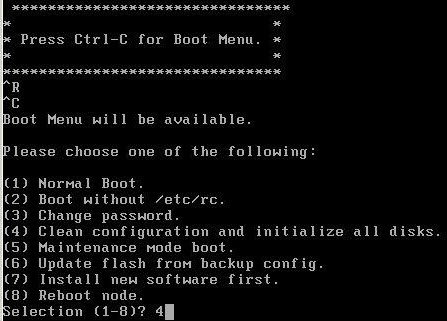
- The Filer will reboot and start initializing the disks.
- This may take quite some time depending on the amount of drives installed.
After all disks have been initialized, the setup script will prompt for input in order to setup the “new” node.
If you have more the one node, repeat all the steps on the other node(s).
Use Cases: New Configurations. Re-purposing older controllers from 7-mode to Clustered mode.

 @greatwhitetec